Getting Started
General information
-
What is Lotus Themes? 😊
Lotus Themes is your destination for well-developed themes for your Zendesk Guide Help Center and all related services. We sell our templates as digital downloads. Within a short time, Lotus Themes has become a leader in outstanding templates creation, Zendesk branding and customization. We are trusted by big and successful companies such as Dropbox, SimilarWeb, Booking.com, Imgur, Deloitte, JetBrains, Lumo and OneTwoTrip.
Lotus Themes company is a Zendesk certified partner

Our themes
All of our themes are responsive, and are designed to work seamlessly on both fullscreen and portable devices. They are created using the most modern technologies. All the original features and tools of Zendesk are available and fully supported in our themes. Moreover, we provide an extra library to extend the Knowledge Base and Community with some cool visual components and features.
All templates we offer are provided with editable sources files and can be customized according to your needs. Read what you can and what you can not do with the themes?
Our services

If you would like, you can install your theme on your own.
However, if you prefer not to spend time installing your theme, we can do this for you. You will need to provide us with temporary admin access to carry out the installation.
Installation service FAQ
The Branding service provides basic changes of a purchased theme: we can change the colors of Help Center elements, use your corporate font and logo, change the hero image and customize icons.
Branding service FAQ
The Customization service is a convenient and fast way to make your Help Center completely meet your requirements. The cost of this service depends on the level of the task difficulty and is calculated individually in each case.
Customization service FAQIf you have any other needs related to Zendesk such as app development, integration, consulting, agent training, setup, and configuration, etc., just let us know.Our advantages
- The major benefit of purchasing our themes and services is the price: you get a high-quality design at a reasonable price. You don't have to hire a web designer, web design studio or specialists who know Zendesk architecture.
- The second advantage is the time frame: you get a theme from our catalog immediately after making the payment. If you need branding or customization services, they usually take 2-5 working days. If you hire other teams or specialists without Zendesk expertise, it usually takes anything between five to fifteen working days for a good designer to create web pages of similar quality, and from five to fifteen business days for a good web developer to code them.
- Zendesk is our specialty. Thanks to our deep knowledge and expertise, we can guarantee high-quality results faster, cheaper and better than freelancers, web studios or direct competitors. We know every detail of Zendesk, even the smallest ones, and don't miss anything. Moreover, we provide an extra library to extend the Knowledge Base and Community with some cool visual components and features.
Tip
Take a look at the comparison table to get more details.
-
Zendesk partnership
Rest assured that we provide you with the best services as Lotus Themes is one of the certified Zendesk partners.

-
Zendesk Guide examples based on the customized Leaf theme
Our Zendesk theme Leaf is a perfect basis for a bespoke help center. It can be branded according to your company style guide and customized to meet all your unique needs in visual design and help center functionality. Look at these Zendesk Guide examples that are based on the customized Leaf theme.
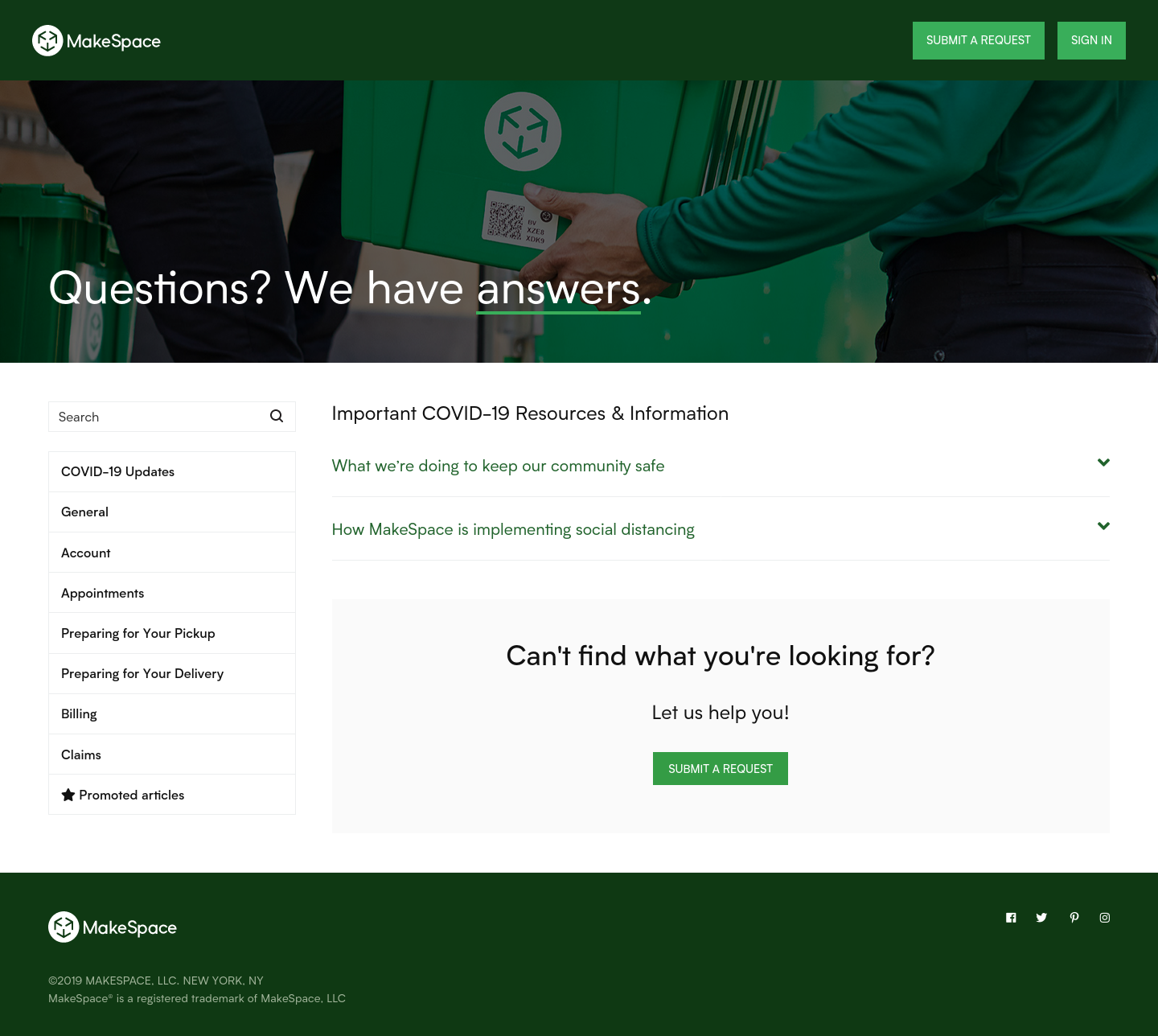
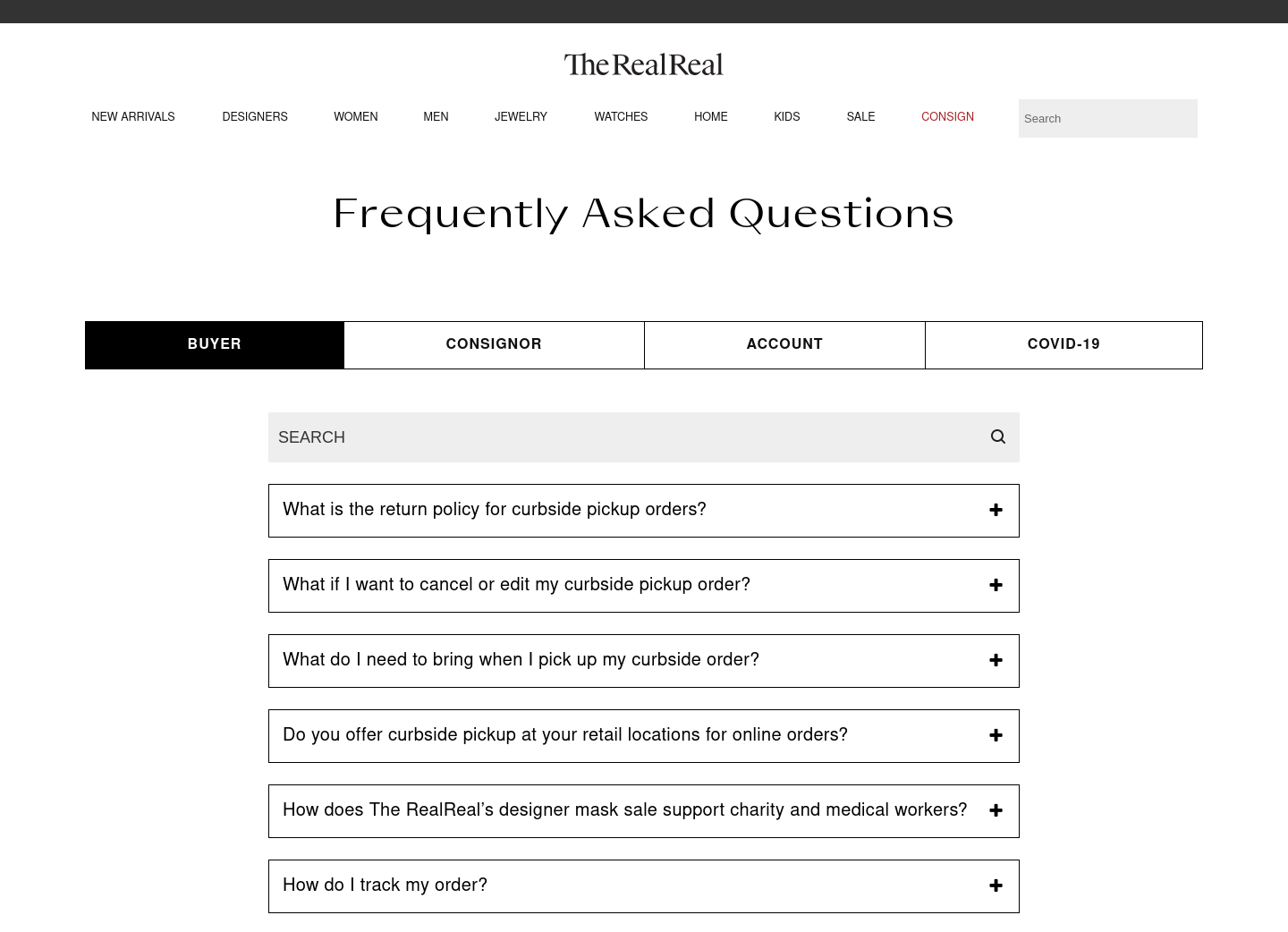
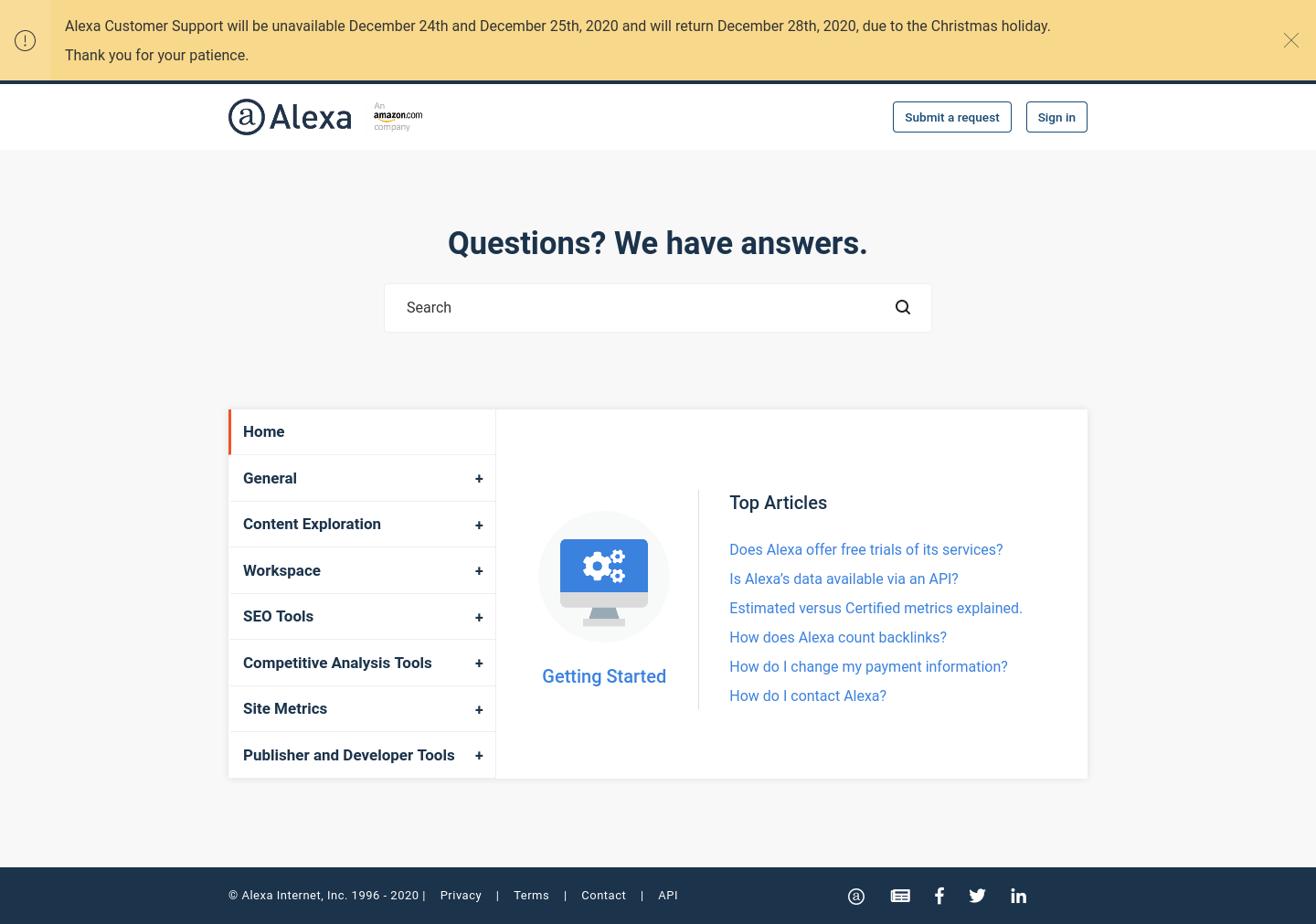
Want to see more Zendesk Guide examples?
-
Products and services pricing
Themes pricing
You can find the price for each of our themes in our catalog. The price of a theme includes its purchase and installation to your Zendesk Help Center. Any Zendesk template or service will cost you exactly the price specified in the catalog.
Services pricing
- Some of the services (such as branding) are rather standard, and you can find the price for each of them in our catalog.
- The cost of other services (such as customization) depends on the level of difficulty and is calculated separately in each case. Just share your customization requirements with us, and we will calculate the cost.
- During the checkout process, you may see some additional offers appear, such as services or options that you can add to your cart. However, we do not have any hidden costs involved in our template sales.
- If you decide to order additional options later, it will feature as a separate order.
Free services
Some of the services (such as installation) are free, since they don't require a lot of time.
No hidden payment
- No monthly fee! All prices are one-off.
- No extra payments.
- No taxes.
- No commissions.
- It doesn’t matter whether you use an existing Help Center or create a new one, or how much content or how many agents you have.
- The prices you see in the catalog or cart are final.
Note
Zendesk plan price is not included in the template price. You’ll need to purchase a Zendesk plan subscription and template separately.
-
Products and services support
All the issues will be fixed
Our specialists are highly qualified professionals. It doesn’t matter what your question is about — design, layout, using the code in Zendesk architecture — we will always help and find a solution for you! For each request, we have an expert who can fix it best.
If any problem occurs during the installation process, or if the theme for some reason works differently than expected, or an error occurs during the download or if you need general getting started instructions, you can always rely on our Customer Support for free.
Warranty
We provide warranty coverage for all our themes for three months. There is almost no chance of encountering a mistake in our templates as all of them are tested thoroughly before sale. Nevertheless, in case of any mistakes, we’ll do everything possible to correct them immediately. We always stay in touch to help you with any possible issues.
You can also get an additional guarantee for 12 months by purchasing one of our annual protection plans with extra benefits.
-
Information for non-developers
You don’t have to worry if you don’t have programming experience or Zendesk structure knowledge. You do not need it with us. We do all the work on the turnkey basis. We can install the theme to your Help Center, test how it works, apply Branding or Customization service to it. Just tell us your demands, and we will implement them in the best way.
If you and your colleagues are familiar with HTML and CSS 👍, then it's rather simple to make changes to the theme individually. But even in this case if you prefer not to spend time on it, we can do it for you.
Themes
-
What you can do yourself with themes
This option is available for customers with Guide Professional, Enterprise, or Legacy plan.
Theme installation
You can install your new theme fast and in a hassle-free manner. Follow the instructions in our step-by-step Theme installation guide, and your Zendesk help center will be up and running in no time. Need help installing the theme? You can order our free installation service.
Changes via the Customize design panel without a single line of code!
Our themes have advanced tools for basic changes (colors, fonts, hero image, icons & homepage layout). All you need is the Zendesk theme editor to make these changes. You can also order branding service from us.
You can change the following elements without coding:
- Name of your Help Center;
- Logo;
- Favicon;
- Main colors;
- Fonts;
- Icons;
- Main hero image (in case the theme contains it);
- Home page layout;
- Colors for formatting components;
- Social media links.
Changes via code
If you have basics of HTML and CSS, you can customize our themes for Zendesk Guide at any time. You get access to the source code that’s easy to read and modify for other developers.
As all our templates follow the industry code standards, and they are well optimized, theme maintenance and customization will be easy. Even if you messed something up, you could quickly fix the problems.
- Colors;
- Fonts;
- Icons (we usually use Streamline Icons, but it is possible to use any others as well);
- Links;
- Logo return URL;
- Header;
- Footer;
- Layout changes. For example, number of columns;
- Anything else...
Note
If you change the theme on your own we will be unable to install all further updates of the theme, and support of the theme will not be available.
Changes via Lotus Themes
If you prefer not to spend time, we can do all the changes for you. We have Branding and Customization services.
We will create a demo Help Center where you will be able to check all the changes. Afterward, we will install the modified theme on your Help Center where you can test everything with your content in the preview mode. Only after that you can publish the theme.
The best way to start is to complete our questionnaire. It will take you a couple of minutes and will help us to understand your case and recommend the best solution.
You can also contact us via the ticket form or hello@lotusthemes.com
-
Home page options
Explore the main page structure and how you can change it, all possible options and adjustments review.
Main layout options
Usually, а Home page template of a theme consists of three main blocks.
-
Custom blocks
Custom blocks are just links to any pages you want. It could be a page on your main website or a Category/Section/Article at your Help Center. They are just placeholders and are completely optional. Once there are more than the default number of icons, a new line is created. Usually, we use Streamline Icons, but it is possible to use any other icons too.

-
List of categories
Each category is presented as a tile. By clicking on a tile, you open a category page.

-
Categories tree
This is a list of categories in a Help Center. Each category contains a list of sections. Each section contains a list of six articles with a link to more articles if there are any.

Mix them!


You can view the main options in our demo Help Centers for each theme. Check the widget in the left-bottom corner of the demo main page.

Additional layout options
You can also quickly turn on or off “Promoted articles” and “Browse Community” blocks and move them on your Homepage.

Other options
Any part of our templates can be changed. It is possible to make any change, from color changes to complete layout redesign. Check out the "What can be changed" article for more details.
-
-
Terms of Service
Important information about the terms of use for our products for Zendesk Help Center.
You can
- Use the chosen theme with Zendesk Help Center on your own. You can use it for yourself, your employer, or client, who must be the end user of your work.
- Modify the chosen template to meet your needs on your own or order our services to modify it. With each theme, you are granted a non-exclusive, worldwide license, allowing you, or your single client, to create a single end product.
- Use templates purchased on LotusThemes.com for a single domain only, whether they are published or not. You can use the theme with additional Zendesk Help Centers if you have multibrand licenses.
You can not
- Share, resell, barter, trade or give away a single theme multiple times in its original or modified form. If you want to give a template to more than one client, you will need to purchase a new one every time you want to sell it.
- Claim intellectual or exclusive ownership of any of our products, modified or unmodified. The intellectual property rights of the purchased theme remain the property of Lotus Studio LLC. If we discover unauthorized distribution of our intellectual property, the original license may be voided without refund, and all Help Centers using the original code or unauthorized copies must cease using them immediately. In such cases, we reserve the right to take legal action against you.
- Make more than one Help Center using the same Zendesk theme (to make another Help Center with the same template you have to purchase a multibrand license).
- Provide rival companies with access to the theme.
- License templates and make them available on your website for your users to download.
- Demonstrate our templates for commercial purposes without credit to Lotus Themes.
- Add a theme code or its parts to public repositories (GitHub, GitLab, Bitbucket, etc) because it will be available to everyone on the Internet and can be used as an unauthorized copy. The code of a theme or extensions in its original or modified form can be used only by the company that made a purchase.
You agree to take all commercially responsible steps to prevent your third parties from duplicating any theme. If you become aware of any unauthorized use of any LotusThemes.com templates for Zendesk Help Centers, please notify us at hello@lotusthemes.com.
-
Themes compatibility
This article shows that our themes are all-purpose.
Our themes are compatible with:
- Various devices,
- All popular web browsers,
- Zendesk plans:
- Guide Professional,
- Guide Legacy,
- Guide Enterprise;
- Applicable Zendesk versions:
- Help Center;
- Languages:
- All the 40+ languages supported by Zendesk;
- Help Center pages:
- All the Help Center pages.
-
How themes affect content?
Our themes don't affect any Help Center content or content management options. You can edit Articles, Categories, etc. as normal by using the built-in Zendesk Editor.
Moreover, there are some additional features that become available after installing our themes: the Knowledge Base and Community can be filled with some cool visual components and Font Awesome icons.
Services
-
Branding service FAQ
What is included?
The offer includes basic changes: colors, fonts, logo, hero image, and custom icons. If you need extensive changes, we can help you with our Customization service.
Open product pageHow much will it cost?Take a look at our Product page to learn about pricing information.
How long will it take?The process takes around 1–5 working days. We will create a demo Help Center where you will be able to check all the changes. Then we can install the modified theme to your Help Center (free of charge).
How are the changes deployed?After you’ve made the purchase, you should send us your branding information.
After we get your brand assets, we create a demo Help Center, where you can check all the changes. Afterward, we install the theme on your Help Center where you can test everything with your content in the preview mode. You check the changes and publish everything when you are ready.
Can it be purchased later?You can do it whenever you want.
Branding examples


Brandcast
(moved to another our theme recently) -
Customization service FAQ
What is included?
This service is developed to completely meet all your requirements. For example, we can make the header and footer of your Help Center the same as on your main website, change any elements or the full layout of the theme and much more.
If you need more basic changes, use the Branding service instead.
Open product pageHow much will it cost?The cost of this service depends on the level of the task difficulty and is calculated individually in each case. The best way to start is to complete our questionnaire. It will take a couple of minutes and help us to understand your case and recommend the best solution. You can also contact us via the ticket form or write to us at hello@lotusthemes.com
How long will it take?It depends on the level of the task difficulty and is calculated individually in each case. The best way to start is to complete our questionnaire. It will take a couple of minutes and help us to understand your case and recommend the best solution. You can also contact us via the ticket form or write to us at hello@lotusthemes.com
How are the changes deployed?We create a demo Help Center where you can check all the changes. Afterward, we install the theme on your Help Center where you can test everything with your content in the preview mode. You check the changes and publish everything.
Can it be purchased later?You can do it whenever you want.
Can my existing theme be customizedWe don't customize themes created by other developers. We always use one of our themes as a basis. It is reasonable because they are already completely responsive and properly tested.
The best way to start is to complete our questionnaire. It will take a couple of minutes and help us to understand your case and recommend the best solution. You can also contact us via the ticket form or write to us at hello@lotusthemes.com
Can I customize a theme on my own?This depends on your level of experience with Zendesk and web development. All our Zendesk templates are provided with editable source files and can be customized according to your requirements.
Please note that all the future updates to the theme will not be available for automatic installation and support of the theme will not be available either.
Customization examples


-
Installation service FAQ
What is included?
The offer includes free installation to your Help Center, customized icons and the home page layout setup.
Open product pageHow much will it cost?Installation is free.
How long will it take?The installation normally takes 12-48 hours. The amount of time depends on the product, as well as on the time lapse between our staff’s correspondence with you and your replies.
How is new theme deployed?One of our developers will contact you after the purchase to get temporary access to your portal (URL, login, and password). We install the theme to your Help Center, where you can test everything with your content in the preview mode. You check the changes and publish everything.
Can it be purchased later?You can do it whenever you want.
Can I install a theme on my own?Yes, you can. Read our instructions on theme installation.
Purchasing Questions
Before the purchase
-
Refund policy
Since LotusThemes.com is offering non-tangible irrevocable goods we do not make refunds once the order is complete and the product is sent. As a customer, you are responsible for understanding this when purchasing any item on our website.
However, we realize that exceptional circumstance can take place with regard to the character of the product we supply. Therefore, we approve refund requests for the following reasons:
- Non-delivery of the product: due to some mailing issues of your email provider or your email server you might not receive a delivery e-mail from us. In this case, we recommend contacting us for assistance. Claims for non-delivery must be submitted to our Billing department in written form within seven days from the order placing date. Otherwise, the product will be considered received and downloaded;
- Download and unzipping issues: for some reason you might have problems while downloading the product or its unzipping. Claims regarding such issues must be submitted by consideration of our Support department. If you do not contact us during three days, you agree that we may construe silence as a confirmation of successful delivery and download of the product with no further rights of refund for a “download issue” reason. Failure to receive assistance for downloading or unzipping within three days may result in a refund decline;
- Major defects: although all the products are thoroughly tested before release, there is always a chance of unexpected errors. Such issues must be submitted for consideration by our Support Team. We retain the right to rectify the errors or defects within 72 hours. If the defect is identified as our mistake and we fail to correct it within 72 hours from the date of the initial complaint email or any other notification provided by a Customer, then we have two options to resolve the issue. One is full refund to the customer without any compensations or reimbursements. The second option is replacement of the product of the same or around the same value. Please note that temporary access to your Help Center can be requested by our technicians to identify and fix the possible issues with our themes. Failure to provide such access promptly may cause delays in the issue resolution. Refusal to provide access to your Help Center will cause your inability to apply for a refund.
- Product not-as-described: such issues should be submitted to our Support Department within seven days from the date of the purchase. Clear evidence must be provided proving that the purchased product is not as it is described on the website. Complaints which are based merely on the customer’s false expectations or wishes are not honored.
-
Demo Help Centers
We have live previews for each template on our website.

-
Immediate access to the template
You’ll get a Zendesk theme template once you’ve completed the purchase process. The template is normally delivered to your email within 3-5 minutes.
You will receive an archive with source files (HTML templates, JS and CSS files, and images).
Purchasing process
-
Payments
We made the payment process convenient to you, please see the instructions how to do it fast and easy.
All global payment methods
We accept all global debit, credit cards, bank transfer, and checks:
- Debit and credit cards
- Bank transfer
- Check
Reliable platforms
We use world leaders payment platforms only. Your payments are processed securely by Stripe.com gateway.
Payment instructions
Choose the Credit card payment and enter all the details.

- Choose the Bank deposit option and send the payment into the bank account specified below.
- After clicking the Complete order button, you’ll get an email with the order details, PDF receipt, and bank account details in case you haven’t made the payment.
 If you'd like to pay by check, contact our sales department.
If you experience problems with the payment gateways, please inform us. It would be nice if you could send us a copy of the bug description or a screenshot.
-
Payments security
Your payments for theme purchases are processed securely by Stripe.com gateway. Here are some of the ways in which they keep your information secure:
- They use industry-leading encryption and fraud prevention tools.
- They don't share your financial information with LotusThemes.com.
- They send you a confirmation email when you make payment.
Usage Guides
Technical guides
-
Theme installation
For your convenience, there is a free Installation service.
You can also install your Zendesk help center custom theme by yourself if you like. It is rather simple. Use the following instructions.
-
In Guide, click on the Customize design icon in the sidebar.
The Theming center page opens.

-
Click the Add new theme in the upper-right corner.

-
Click Import theme.

Find and select your theme file.
The theme is imported and appears on your Themes page.
-
Click the Customize button on the theme you would like to preview.

-
Click the Help Center link at the top bar panel to test the new theme with your real content in preview mode.
Your Help Center visitors see the previous theme since the new one is not published yet.

- You can preview what different pages look like if you choose the corresponding page in the Templates menu.
- You can also test the theme as an end-user, anonymous, or agent by clicking the Preview role menu at the top bar panel and selecting the corresponding role.

-
Publish the theme. When you're ready to implement the changes, go back to Guide admin.

Click the Settings icon on the theme image and select the Set as live theme option. Confirm this action.
Note
You may not see the Submit a request button because you are logged in as the agent. You can view the theme as an end-user or anonymous if you select the corresponding option in the Preview role dropdown.
Alternatively, you can enable access request forms for your agents.
Note
If you want to embed videos or use article formatting components, you must allow unsafe content within your Zendesk Guide settings.
-
-
Images and icons requirements
Logo No specific sizing requirements.
Transparent background and SVG format are preferred.
Custom blocks icons or any other icons 100x100px
We recommend using SVG icons as they look beautiful on all devices.
Search area background image
(hero unit)At least 1600x1100px
We recommend using a colorful photo in the JPEG format.
-
DIY Branding
Changes you can make in our themes:
- Main colors of the theme, fonts from Google Fonts, logo, favicon, background image in the search area

- Icons on the main page, as well as their names and links

- Home page layout. You can choose which blocks to show, for example custom blocks, category list, category tree, promoted articles.

- Colors for formatting components

- Social media links in the footer

If you need more complicated changes, you can order Zendesk branding and customization from Lotus Themes.
How Tos
-
How to use the Formatting content
Follow these steps to add the code:
- Open the article editor.
- Click on the "Source code" button as show the below.

- Paste one of the following examples of code to the code editor.

- Edit the text as desired.
- Click on the "OK" button. It will close the modal window.
- Continue editing an article as usual.
- Save and publish the changes.
Formatting Content
- Formatting content 🎨
-
Accordions
Accordions
Accordions are useful when you need to toggle between hiding and showing large amount of content:
Accordion itemLorem ipsum dolor sit amet, consectetur adipiscing elit, sed do eiusmod tempor incididunt ut labore et dolore magna aliqua. Ut enim ad minim veniam, quis nostrud exercitation ullamco laboris nisi ut aliquip ex ea commodo consequat. Duis aute irure dolor in reprehenderit in voluptate velit esse cillum dolore eu fugiat nulla pariatur. Excepteur sint occaecat cupidatat non proident, sunt in culpa qui officia deserunt mollit anim id est laborum.
Accordion itemLorem ipsum dolor sit amet, consectetur adipiscing elit, sed do eiusmod tempor incididunt ut labore et dolore magna aliqua. Ut enim ad minim veniam, quis nostrud exercitation ullamco laboris nisi ut aliquip ex ea commodo consequat. Duis aute irure dolor in reprehenderit in voluptate velit esse cillum dolore eu fugiat nulla pariatur. Excepteur sint occaecat cupidatat non proident, sunt in culpa qui officia deserunt mollit anim id est laborum.Accordion itemLorem ipsum dolor sit amet, consectetur adipiscing elit, sed do eiusmod tempor incididunt ut labore et dolore magna aliqua. Ut enim ad minim veniam, quis nostrud exercitation ullamco laboris nisi ut aliquip ex ea commodo consequat. Duis aute irure dolor in reprehenderit in voluptate velit esse cillum dolore eu fugiat nulla pariatur. Excepteur sint occaecat cupidatat non proident, sunt in culpa qui officia deserunt mollit anim id est laborum.<div class="accordion accordion--default"> <div class="accordion__item"> <div class="accordion__item-title"> <strong>Accordion item</strong> </div> <div class="accordion__item-content"> <p>Lorem ipsum dolor sit amet, consectetur adipiscing elit, sed do eiusmod tempor incididunt ut labore et dolore magna aliqua. Ut enim ad minim veniam, quis nostrud exercitation ullamco laboris nisi ut aliquip ex ea commodo consequat. Duis aute irure dolor in reprehenderit in voluptate velit esse cillum dolore eu fugiat nulla pariatur. Excepteur sint occaecat cupidatat non proident, sunt in culpa qui officia deserunt mollit anim id est laborum.</p> </div> </div> <div class="accordion__item"> <div class="accordion__item-title"> <strong>Accordion item</strong> </div> <div class="accordion__item-content">Lorem ipsum dolor sit amet, consectetur adipiscing elit, sed do eiusmod tempor incididunt ut labore et dolore magna aliqua. Ut enim ad minim veniam, quis nostrud exercitation ullamco laboris nisi ut aliquip ex ea commodo consequat. Duis aute irure dolor in reprehenderit in voluptate velit esse cillum dolore eu fugiat nulla pariatur. Excepteur sint occaecat cupidatat non proident, sunt in culpa qui officia deserunt mollit anim id est laborum.</div> </div> <div class="accordion__item"> <div class="accordion__item-title"> <strong>Accordion item</strong> </div> <div class="accordion__item-content">Lorem ipsum dolor sit amet, consectetur adipiscing elit, sed do eiusmod tempor incididunt ut labore et dolore magna aliqua. Ut enim ad minim veniam, quis nostrud exercitation ullamco laboris nisi ut aliquip ex ea commodo consequat. Duis aute irure dolor in reprehenderit in voluptate velit esse cillum dolore eu fugiat nulla pariatur. Excepteur sint occaecat cupidatat non proident, sunt in culpa qui officia deserunt mollit anim id est laborum.</div> </div> </div>One more accordion type:
Accordion itemLorem ipsum dolor sit amet, consectetur adipiscing elit, sed do eiusmod tempor incididunt ut labore et dolore magna aliqua. Ut enim ad minim veniam, quis nostrud exercitation ullamco laboris nisi ut aliquip ex ea commodo consequat. Duis aute irure dolor in reprehenderit in voluptate velit esse cillum dolore eu fugiat nulla pariatur. Excepteur sint occaecat cupidatat non proident, sunt in culpa qui officia deserunt mollit anim id est laborum.Accordion itemLorem ipsum dolor sit amet, consectetur adipiscing elit, sed do eiusmod tempor incididunt ut labore et dolore magna aliqua. Ut enim ad minim veniam, quis nostrud exercitation ullamco laboris nisi ut aliquip ex ea commodo consequat. Duis aute irure dolor in reprehenderit in voluptate velit esse cillum dolore eu fugiat nulla pariatur. Excepteur sint occaecat cupidatat non proident, sunt in culpa qui officia deserunt mollit anim id est laborum.Accordion itemLorem ipsum dolor sit amet, consectetur adipiscing elit, sed do eiusmod tempor incididunt ut labore et dolore magna aliqua. Ut enim ad minim veniam, quis nostrud exercitation ullamco laboris nisi ut aliquip ex ea commodo consequat. Duis aute irure dolor in reprehenderit in voluptate velit esse cillum dolore eu fugiat nulla pariatur. Excepteur sint occaecat cupidatat non proident, sunt in culpa qui officia deserunt mollit anim id est laborum.<div class="accordion accordion--colored"> <div class="accordion__item"> <div class="accordion__item-title"> <strong>Accordion item</strong> </div> <div class="accordion__item-content">Lorem ipsum dolor sit amet, consectetur adipiscing elit, sed do eiusmod tempor incididunt ut labore et dolore magna aliqua. Ut enim ad minim veniam, quis nostrud exercitation ullamco laboris nisi ut aliquip ex ea commodo consequat. Duis aute irure dolor in reprehenderit in voluptate velit esse cillum dolore eu fugiat nulla pariatur. Excepteur sint occaecat cupidatat non proident, sunt in culpa qui officia deserunt mollit anim id est laborum.</div> </div> <div class="accordion__item"> <div class="accordion__item-title"> <strong>Accordion item</strong> </div> <div class="accordion__item-content">Lorem ipsum dolor sit amet, consectetur adipiscing elit, sed do eiusmod tempor incididunt ut labore et dolore magna aliqua. Ut enim ad minim veniam, quis nostrud exercitation ullamco laboris nisi ut aliquip ex ea commodo consequat. Duis aute irure dolor in reprehenderit in voluptate velit esse cillum dolore eu fugiat nulla pariatur. Excepteur sint occaecat cupidatat non proident, sunt in culpa qui officia deserunt mollit anim id est laborum.</div> </div> <div class="accordion__item"> <div class="accordion__item-title"> <strong>Accordion item</strong> </div> <div class="accordion__item-content">Lorem ipsum dolor sit amet, consectetur adipiscing elit, sed do eiusmod tempor incididunt ut labore et dolore magna aliqua. Ut enim ad minim veniam, quis nostrud exercitation ullamco laboris nisi ut aliquip ex ea commodo consequat. Duis aute irure dolor in reprehenderit in voluptate velit esse cillum dolore eu fugiat nulla pariatur. Excepteur sint occaecat cupidatat non proident, sunt in culpa qui officia deserunt mollit anim id est laborum.</div> </div> </div> -
Codes
HTML code
<!DOCTYPE HTML>
<html>
 <head>
  <meta charset="utf-8">
  <title>HTML</title>
 </head>
 <body>
  <p>Lorem ipsum dolor sit amet. </p>
 </body>
</html>
<pre><code class="html"><!DOCTYPE HTML> <html> <head> <meta charset="utf-8"> <title>HTML</title> </head> <body> <p>Lorem ipsum dolor sit amet. </p> </body> </html></code></pre>Ruby code
# The Greeter class
class Greeter
  def initialize(name)
    @name = name.capitalize
  end

  def salute
    puts "Hello #{@name}!"
  end
end

g = Greeter.new("world")
g.salute
<pre><code class="ruby"># The Greeter class class Greeter def initialize(name) @name = name.capitalize end def salute puts "Hello #{@name}!" end end g = Greeter.new("world") g.salute</code></pre>Other languages are compatible. Learn more.
-
Callout blocks
Simple notes
Default
This is a default block
<div class="note note--default">
  <h4 class="note-title">Default</h4>
  <p>This is a default block</p>
</div>
Info
This is an info block
<div class="note note--info">
  <h4 class="note-title">Info</h4>
  <p>This is an info block</p>
</div>
Warning
This is a warning block
<div class="note note--warning">
  <h4 class="note-title">Warning</h4>
  <p>This is a warning block</p>
</div>
Success
This is a success block
<div class="note note--success">
  <h4 class="note-title">Success</h4>
  <p>This is a success block</p>
</div>
Danger
This is a danger block
<div class="note note--danger">
  <h4 class="note-title">Danger</h4>
  <p>This is a danger block</p>
</div>
Callout block by default
This is a callout
I'm a gray callout!
<div class="callout">
  <h4 class="callout__title">This is a callout</h4>
  <p>I'm a gray callout!</p>
</div>
This is a callout
I'm a gray callout!
<div class="callout callout--dashed">
  <h4 class="callout__title">This is a callout</h4>
  <p>I'm a gray callout!</p>
</div>
Transparent callout
This is a transparent callout
I'm a transparent callout!
<div class="callout callout--transparent">
  <h4 class="callout__title">This is a transparent callout</h4>
  <p>I'm a transparent callout!</p>
</div>
With dashed border:
This is a callout
I'm a transparent callout!
<div class="callout callout--transparent callout--dashed">
  <h4 class="callout__title">This is a callout</h4>
  <p>I'm a transparent callout!</p>
</div>
Success callout
This is a success callout
I'm a success callout!
<div class="callout callout--success">
  <h4 class="callout__title">This is a success callout</h4>
  <p>I'm a success callout!</p>
</div>
This is a success callout
I'm a success callout!
<div class="callout callout--success callout--dashed">
  <h4 class="callout__title">This is a success callout</h4>
  <p>I'm a success callout!</p>
</div>
Info callout
This is an info callout
I'm a neutral info callout!
<div class="callout callout--info">
  <h4 class="callout__title">This is an info callout</h4>
  <p>I'm a neutral info callout!</p>
</div>
This is an info callout
I'm a neutral info callout!
<div class="callout callout--info callout--dashed">
  <h4 class="callout__title">This is an info callout</h4>
  <p>I'm a neutral info callout!</p>
</div>
Warning-callout
This is a warning callout
And now I'm going to tell you something very important! Pay attention to me!
<div class="callout callout--warning">
  <h4 class="callout__title">This is a warning callout</h4>
  <p>And now I'm going to tell you something very important! Pay attention to me!</p>
</div>
This is a warning callout
I'm a warning callout with dashed border!
<div class="callout callout--warning callout--dashed">
  <h4 class="callout__title">This is a warning callout</h4>
  <p>I'm a warning callout with dashed border!</p>
</div>
Caution callout
This is a caution callout
And here's some critical information you have to know!
<div class="callout callout--danger">
  <h4 class="callout__title">This is a caution callout</h4>
  <p>And here there's some critical information you have to know!</p>
</div>
This is a caution callout
I'm a caution callout with dashed border!
<div class="callout callout--danger callout--dashed">
  <h4 class="callout__title">This is a caution callout</h4>
  <p>I'm a caution callout with dashed border!</p>
</div>
Callout in primary color
This is a callout
I'm a callout in primary color
<div class="callout callout--primary">
  <h4 class="callout__title">This is a callout</h4>
  <p>I'm a callout in primary color</p>
</div>
This is a callout
I'm a callout in primary color with dashed border!
<div class="callout callout--primary callout--dashed">
  <h4 class="callout__title">This is a callout</h4>
  <p>I'm a callout in primary color with dashed border!</p>
</div>
Callout blocks with the Font Awesome icons
It is possible to combine your callouts with Font Awesome icons:
Subscribe icon
This is a callout with the icon
<div class="callout"> <h4 class="callout__title"><em class="fas fa-paper-plane"> </em> Subscribe icon</h4> <p>This is callout with the icon</p> </div>Lock icon
This is a callout with the icon
<div class="callout"> <h4 class="callout__title"><em class="fas fa-lock"> </em> Lock icon</h4> <p>This is callout with the icon</p> </div>Phone icon
This is a callout with the icon
<div class="callout"> <h4 class="callout__title"><em class="fas fa-phone"> </em> Phone icon</h4> <p>This is callout with the icon</p> </div>Clock icon
This is a callout with the icon
<div class="callout"> <h4 class="callout__title"><em class="fas fa-clock"> </em> Clock icon</h4> <p>This is callout with the icon</p> </div>File icon
This is a callout with the icon
<div class="callout"> <h4 class="callout__title"><em class="fas fa-file"> </em> File icon</h4> <p>This is callout with the icon</p> </div>Smile icon
This is a callout with the icon
<div class="callout"> <h4 class="callout__title"><em class="far fa-smile"> </em> Smile icon</h4> <p>This is callout with the icon</p> </div>Magic icon
This is a callout with the icon
<div class="callout"> <h4 class="callout__title"><em class="fas fa-magic"> </em> Magic icon</h4> <p>This is callout with the icon</p> </div>Combine colors and icons!
Smile icon
This is a callout with the icon
<div class="callout callout--success"> <h4 class="callout__title"><em class="far fa-smile-o"> </em> Smile icon</h4> <p>This is callout with the icon</p> </div>Magic icon
This is a callout with the icon
<div class="callout callout--warning"> <h4 class="callout__title"><em class="fas fa-magic"> </em> Magic icon</h4> <p>This is callout with the icon</p> </div> -
Description lists
Default description list
- Euismod
- Vestibulum id ligula porta felis euismod semper eget lacinia odio sem nec elit.
- Donec id elit non mi porta gravida at eget metus.
- Malesuada porta
- Etiam porta sem malesuada magna mollis euismod.
<dl>
  <dt>Euismod</dt>
  <dd>Vestibulum id ligula porta felis euismod semper eget lacinia odio sem nec elit.</dd>
  <dd>Donec id elit non mi porta gravida at eget metus.</dd>
  <dt>Malesuada porta</dt>
  <dd>Etiam porta sem malesuada magna mollis euismod.</dd>
</dl>
Horizontal description list
- Description lists
- Such description list is perfect for defining terms.
- Euismod
- Vestibulum id ligula porta felis euismod semper eget lacinia odio sem nec elit.
- Donec id elit non mi porta gravida at eget metus.
- Malesuada porta
- Etiam porta sem malesuada magna mollis euismod.
<dl class="dl-horizontal"> <dt>Description lists</dt> <dd>A description list is perfect for defining terms.</dd> <dt>Euismod</dt> <dd>Vestibulum id ligula porta felis euismod semper eget lacinia odio sem nec elit.</dd> <dd>Donec id elit non mi porta gravida at eget metus.</dd> <dt>Malesuada porta</dt> <dd>Etiam porta sem malesuada magna mollis euismod.</dd> </dl> -
Font Awesome icons
Font Awesome is a variety of scalable vector icons that can instantly be customized — size, color, shadow, and other changes that can be done with the power of CSS.
1500+ icons for you
You can use any of 1500+ icons free of charge anywhere in your Help Center (layout, articles, etc.). They are already included in all our themes. Find all Font Awesome icons and their codes on this page.
Font Awesome inside the text
It is rather easy to insert a Font Awesome icon to any text of your Help Center . Font Awesome is completely free for commercial use . The icons are vector, which means they're gorgeous on high-resolution displays . It is very easy to make your own design by changing icons' color, size, shadow, and anything that's possible with CSS .
<p>It is rather simple to insert a Font Awesome icon to any text of your Help Center <em class="fas fa-flag"> </em>. Font Awesome is completely free for commercial use <em class="fas fa-hand-left"> </em>. The icons are vector, which means they're gorgeous on high-resolution displays <em class="fas fa-eye"> </em>. It is very easy to make your own design by changing icons' color, size, shadow, and anything that's possible with CSS <em class="fas fa-pencil-alt"> </em>. </p>Please note that Zendesk's editor removes empty tags added to the source code. Make sure that you are adding non-breaking space to the code. For example, instead of:
<em class="fas fa-pencil"> </em>use:
<em class="fas fa-pencil"> </em>Font Awesome titles
You can use any icons from Font Awesome library for making your titles more stylish and memorable!
Title with a motorcycle
Title with a calculator
Title with binoculars
Title with a heartbeat
<h4><em class="fas fa-2x fa-motorcycle"> </em> Title with a motorcycle</h4> <h4 class="wysiwyg-color-green120"><em class="fas fa-2x fa-calculator"> </em> Title a the calculator</h4> <h4 class="wysiwyg-color-pink"><em class="fas fa-2x fa-binoculars"> </em> Title with binoculars</h4> <h4 class="wysiwyg-color-red"><em class="fas fa-2x fa-heartbeat"> </em> Title with a heartbeat</h4>And not only your titles:
Tomorrow we will run faster, stretch out our arms further... And then one fine morning So we beat on, boats against the current, borne back ceaselessly into the past.
<div class="fas fa-quote-left fa-3x fa-pull-left fa-border"> </div> <p>Tomorrow we will run faster, stretch out our arms further... And then one fine morning So we beat on, boats against the current, borne back ceaselessly into the past.</p>Animate them!
<div class="fas fa-spinner fa-spin fa-3x fa-fw"> </div> <div class="fas fa-circle-notch fa-spin fa-3x fa-fw"> </div> <div class="fas fa-sync fa-spin fa-3x fa-fw"> </div> <div class="fas fa-cog fa-spin fa-3x fa-fw"> </div> <div class="fas fa-venus fa-spin fa-3x fa-fw"> </div> <div class="fas fa-mars fa-spin fa-3x fa-fw"> </div> <div class="fab fa-firefox fa-spin fa-3x fa-fw"> </div> <div class="fab fa-opera fa-spin fa-3x fa-fw"> </div> <div class="fab fa-chrome fa-spin fa-3x fa-fw"> </div>And mix them:
fab-twitter and fa-square
fa-flag and fa-circle
fa-terminal and fa-square
<div style="text-align: center;"> <div style="display: inline-block; margin-right: 20px;"> <div class="fa-stack fa-lg"> <div class="fas fa-square fa-stack-2x"> </div> <div class="fab fa-twitter fa-stack-1x"> </div> </div> <p>fa-twitter and fa-square</p> </div> <div style="display: inline-block; margin-right: 20px;"> <div class="fa-stack fa-lg"> <div class="fas fa-circle fa-stack-2x"> </div> <div class="fas fa-flag fa-stack-1x fa-inverse"> </div> </div> <p>fa-flag and fa-circle</p> </div> <div style="display: inline-block;"> <div class="fa-stack fa-lg"> <div class="fas fa-square fa-stack-2x"> </div> <div class="fas fa-terminal fa-stack-1x fa-inverse"> </div> </div> <p>fa-terminal and fa-square</p> </div> </div>
Troubleshooting
Payment & Purchase Troubleshooting
-
Wrong email address
If you used the wrong email address, submit your request to hello@lotusthemes.com. You should provide us with the details of your order (wrong email, your name, Order ID, Theme name).
-
Download link is broken
Make sure you don’t have firewall restrictions that prohibit this download. Check if you can open this link on another computer.
If it still doesn’t work, contact us at hello@lotusthemes.com. Be ready to provide us with your order number, your email address which you used for your purchase, your name, and chosen template name.
-
Download link is not received
Follow these steps:
- Make sure that you have spelt your e-mail address correctly.
- Check your “Spam/Junk” email folder to see if the email has been blocked by your anti-spam filters. We send our delivery emails from “hello@lotusthemes.com”.
- You may contact our specialists for assistance at hello@lotusthemes.com. Usually, such requests are handled within 12-24 hours.
-
Card was overcharged
We have never faced such an issue. If your card was overcharged, send a screenshot of the card statement showing extra charges at hello@lotusthemes.com with. We will involve our payment operators to resolve the problem.
-
Wrong theme has been purchased
We maintain a no-refund and no-exchange policy because of the specific nature of the product. Technically, there can be no situation when a “wrong template” is delivered. Before proceeding to the checkout page, the customer previews the template in the shopping cart to make sure that it is the one that was chosen.

Theme Usage Troubleshooting
-
Template files are lost
If you lost your files, you can request them to be resent to you. Contact us at hello@lotusthemes.com and provide us with the following information:
- The email address used to make the purchase.
- Order ID.
- Name used for the order.
-
A bug is found
Although all the products are thoroughly tested before release, there is always a chance of unexpected errors. Such issues should be submitted for consideration by our Support Team. We'll do the best to rectify bugs as soon as possible.
If you have found a bug please contact our Support Team and provide them with details (screenshots, description, etc.).
Promoted articles
-
What is Lotus Themes? 😊
Lotus Themes is your destination for well-developed themes for your Zendesk Guide Help Center and all related services. We sell our templates as digital downloads. Within a short time, Lotus Themes has become a leader in outstanding templates creation, Zendesk branding and customization. We are trusted by big and successful companies such as Dropbox, SimilarWeb, Booking.com, Imgur, Deloitte, JetBrains, Lumo and OneTwoTrip.
Lotus Themes company is a Zendesk certified partner
Our themes
All of our themes are responsive, and are designed to work seamlessly on both fullscreen and portable devices. They are created using the most modern technologies. All the original features and tools of Zendesk are available and fully supported in our themes. Moreover, we provide an extra library to extend the Knowledge Base and Community with some cool visual components and features.
All templates we offer are provided with editable sources files and can be customized according to your needs. Read what you can and what you can not do with the themes?
Our services
If you would like, you can install your theme on your own.
However, if you prefer not to spend time installing your theme, we can do this for you. You will need to provide us with temporary admin access to carry out the installation.
Installation service FAQ
The Branding service provides basic changes of a purchased theme: we can change the colors of Help Center elements, use your corporate font and logo, change the hero image and customize icons.
Branding service FAQ
The Customization service is a convenient and fast way to make your Help Center completely meet your requirements. The cost of this service depends on the level of the task difficulty and is calculated individually in each case.
Customization service FAQIf you have any other needs related to Zendesk such as app development, integration, consulting, agent training, setup, and configuration, etc., just let us know.Our advantages
- The major benefit of purchasing our themes and services is the price: you get a high-quality design at a reasonable price. You don't have to hire a web designer, web design studio or specialists who know Zendesk architecture.
- The second advantage is the time frame: you get a theme from our catalog immediately after making the payment. If you need branding or customization services, they usually take 2-5 working days. If you hire other teams or specialists without Zendesk expertise, it usually takes anything between five to fifteen working days for a good designer to create web pages of similar quality, and from five to fifteen business days for a good web developer to code them.
- Zendesk is our specialty. Thanks to our deep knowledge and expertise, we can guarantee high-quality results faster, cheaper and better than freelancers, web studios or direct competitors. We know every detail of Zendesk, even the smallest ones, and don't miss anything. Moreover, we provide an extra library to extend the Knowledge Base and Community with some cool visual components and features.
Tip
Take a look at the comparison table to get more details.
-
Zendesk partnership
Rest assured that we provide you with the best services as Lotus Themes is one of the certified Zendesk partners.
-
What you can do yourself with themes
This option is available for customers with Guide Professional, Enterprise, or Legacy plan.
Theme installation
You can install your new theme fast and in a hassle-free manner. Follow the instructions in our step-by-step Theme installation guide, and your Zendesk help center will be up and running in no time. Need help installing the theme? You can order our free installation service.
Changes via the Customize design panel without a single line of code!
Our themes have advanced tools for basic changes (colors, fonts, hero image, icons & homepage layout). All you need is the Zendesk theme editor to make these changes. You can also order branding service from us.
You can change the following elements without coding:
- Name of your Help Center;
- Logo;
- Favicon;
- Main colors;
- Fonts;
- Icons;
- Main hero image (in case the theme contains it);
- Home page layout;
- Colors for formatting components;
- Social media links.
Changes via code
If you have basics of HTML and CSS, you can customize our themes for Zendesk Guide at any time. You get access to the source code that’s easy to read and modify for other developers.
As all our templates follow the industry code standards, and they are well optimized, theme maintenance and customization will be easy. Even if you messed something up, you could quickly fix the problems.
- Colors;
- Fonts;
- Icons (we usually use Streamline Icons, but it is possible to use any others as well);
- Links;
- Logo return URL;
- Header;
- Footer;
- Layout changes. For example, number of columns;
- Anything else...
Note
If you change the theme on your own we will be unable to install all further updates of the theme, and support of the theme will not be available.
Changes via Lotus Themes
If you prefer not to spend time, we can do all the changes for you. We have Branding and Customization services.
We will create a demo Help Center where you will be able to check all the changes. Afterward, we will install the modified theme on your Help Center where you can test everything with your content in the preview mode. Only after that you can publish the theme.
The best way to start is to complete our questionnaire. It will take you a couple of minutes and will help us to understand your case and recommend the best solution.
You can also contact us via the ticket form or hello@lotusthemes.com
-
Home page options
Explore the main page structure and how you can change it, all possible options and adjustments review.
Main layout options
Usually, а Home page template of a theme consists of three main blocks.
-
Custom blocks
Custom blocks are just links to any pages you want. It could be a page on your main website or a Category/Section/Article at your Help Center. They are just placeholders and are completely optional. Once there are more than the default number of icons, a new line is created. Usually, we use Streamline Icons, but it is possible to use any other icons too.
-
List of categories
Each category is presented as a tile. By clicking on a tile, you open a category page.
-
Categories tree
This is a list of categories in a Help Center. Each category contains a list of sections. Each section contains a list of six articles with a link to more articles if there are any.
Mix them!
You can view the main options in our demo Help Centers for each theme. Check the widget in the left-bottom corner of the demo main page.
Additional layout options
You can also quickly turn on or off “Promoted articles” and “Browse Community” blocks and move them on your Homepage.
Other options
Any part of our templates can be changed. It is possible to make any change, from color changes to complete layout redesign. Check out the "What can be changed" article for more details.
-
-
Branding service FAQ
What is included?
The offer includes basic changes: colors, fonts, logo, hero image, and custom icons. If you need extensive changes, we can help you with our Customization service.
Open product pageHow much will it cost?Take a look at our Product page to learn about pricing information.
How long will it take?The process takes around 1–5 working days. We will create a demo Help Center where you will be able to check all the changes. Then we can install the modified theme to your Help Center (free of charge).
How are the changes deployed?After you’ve made the purchase, you should send us your branding information.
After we get your brand assets, we create a demo Help Center, where you can check all the changes. Afterward, we install the theme on your Help Center where you can test everything with your content in the preview mode. You check the changes and publish everything when you are ready.
Can it be purchased later?You can do it whenever you want.
Branding examples
Brandcast
(moved to another our theme recently) -
Customization service FAQ
What is included?
This service is developed to completely meet all your requirements. For example, we can make the header and footer of your Help Center the same as on your main website, change any elements or the full layout of the theme and much more.
If you need more basic changes, use the Branding service instead.
Open product pageHow much will it cost?The cost of this service depends on the level of the task difficulty and is calculated individually in each case. The best way to start is to complete our questionnaire. It will take a couple of minutes and help us to understand your case and recommend the best solution. You can also contact us via the ticket form or write to us at hello@lotusthemes.com
How long will it take?It depends on the level of the task difficulty and is calculated individually in each case. The best way to start is to complete our questionnaire. It will take a couple of minutes and help us to understand your case and recommend the best solution. You can also contact us via the ticket form or write to us at hello@lotusthemes.com
How are the changes deployed?We create a demo Help Center where you can check all the changes. Afterward, we install the theme on your Help Center where you can test everything with your content in the preview mode. You check the changes and publish everything.
Can it be purchased later?You can do it whenever you want.
Can my existing theme be customizedWe don't customize themes created by other developers. We always use one of our themes as a basis. It is reasonable because they are already completely responsive and properly tested.
The best way to start is to complete our questionnaire. It will take a couple of minutes and help us to understand your case and recommend the best solution. You can also contact us via the ticket form or write to us at hello@lotusthemes.com
Can I customize a theme on my own?This depends on your level of experience with Zendesk and web development. All our Zendesk templates are provided with editable source files and can be customized according to your requirements.
Please note that all the future updates to the theme will not be available for automatic installation and support of the theme will not be available either.
Customization examples
-
Payments
We made the payment process convenient to you, please see the instructions how to do it fast and easy.
All global payment methods
We accept all global debit, credit cards, bank transfer, and checks:
- Debit and credit cards
- Bank transfer
- Check
Reliable platforms
We use world leaders payment platforms only. Your payments are processed securely by Stripe.com gateway.
Payment instructions
Choose the Credit card payment and enter all the details.
- Choose the Bank deposit option and send the payment into the bank account specified below.
- After clicking the Complete order button, you’ll get an email with the order details, PDF receipt, and bank account details in case you haven’t made the payment.
If you'd like to pay by check, contact our sales department.If you experience problems with the payment gateways, please inform us. It would be nice if you could send us a copy of the bug description or a screenshot.
-
Theme installation
For your convenience, there is a free Installation service.
You can also install your Zendesk help center custom theme by yourself if you like. It is rather simple. Use the following instructions.
-
In Guide, click on the Customize design icon in the sidebar.
The Theming center page opens.
-
Click the Add new theme in the upper-right corner.
-
Click Import theme.
Find and select your theme file.
The theme is imported and appears on your Themes page.
-
Click the Customize button on the theme you would like to preview.
-
Click the Help Center link at the top bar panel to test the new theme with your real content in preview mode.
Your Help Center visitors see the previous theme since the new one is not published yet.
- You can preview what different pages look like if you choose the corresponding page in the Templates menu.
- You can also test the theme as an end-user, anonymous, or agent by clicking the Preview role menu at the top bar panel and selecting the corresponding role.
-
Publish the theme. When you're ready to implement the changes, go back to Guide admin.
Click the Settings icon on the theme image and select the Set as live theme option. Confirm this action.
Note
You may not see the Submit a request button because you are logged in as the agent. You can view the theme as an end-user or anonymous if you select the corresponding option in the Preview role dropdown.
Alternatively, you can enable access request forms for your agents.
Note
If you want to embed videos or use article formatting components, you must allow unsafe content within your Zendesk Guide settings.
-
- Formatting content 🎨